SSL certificate alerts in Slack
Paste a Slack webhook. Expiry and breakage alerts land in the channel your team already reads.
Create a Slack incoming webhook, paste the URL into SSL Clock, and alerts post to that channel. Every alert shows the domain, days left, what went wrong and how to fix it. Send production to #ops and marketing sites to #web. Alerts in a team channel get seen sooner than alerts in a shared inbox.
Connect Slack
- In Slack, create an app for your workspace from the Slack API site and turn on Incoming Webhooks.
- Click Add New Webhook to Workspace and pick the channel, for example
#ops-alerts. - Copy the URL. It starts with
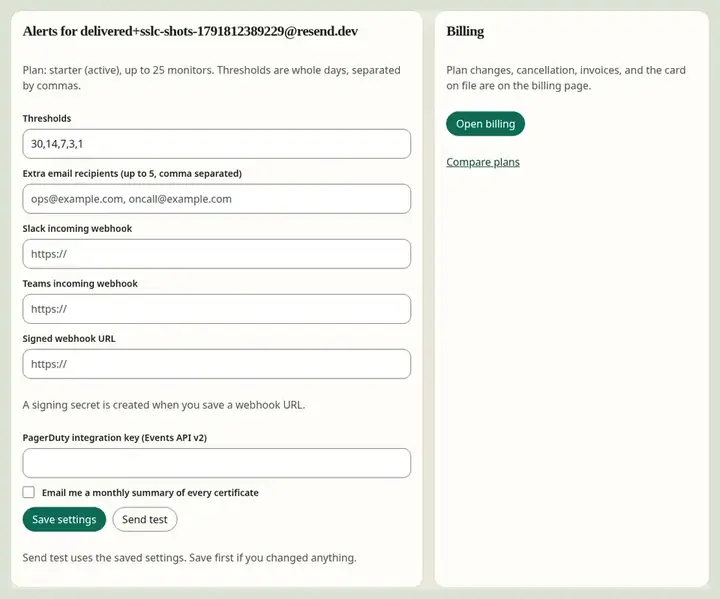
https://hooks.slack.com/services/. - In SSL Clock, open Settings, paste it into Slack incoming webhook and save.
- Click Send test. The result lists every channel and whether it was delivered.
What an alert looks like
Each alert posts as a plain text message: a one-line summary, the certificate details, the likely cause and fix, and a link to the monitor. It reads well on desktop and on a phone lock screen.
SSL Clock: shop.example.com expires in 7 days

shop.example.com is inside the 7-day notice window.
Issuer: Let's Encrypt, R11
Not after: 2026-11-02T08:14:00.000Z
Days remaining: 7

Renewal has not happened yet. Check the ACME client's logs on the server, make sure the HTTP-01 or DNS-01 challenge can complete, then reload the web server so it serves the new certificate.

Open the monitor: https://www.sslclock.com/app/monitors/...

SSL Clock sent this because the hostname is on your account.
This example is representative. Real alerts use your hostname, dates and the cause we detected.
Route each project to its own channel
The account-wide webhook catches everything. On any monitor you can set a different Slack webhook, so production APIs post to #oncall, client sites to each client's shared channel and marketing sites to #web. Email and Microsoft Teams can be routed per site the same way.
Who should get which alerts
A common setup: expiry reminders and problems for production go to #oncall and PagerDuty, client sites go to the account team's channel, and everything also goes to one email address for the record. Keep reminder days short in busy channels so people keep reading them.
Troubleshooting
The test says failed
The webhook was revoked, the app was removed or the channel was archived. Create a new webhook and paste it again.
The test says sent, but nothing arrives
Check you are looking at the channel the webhook was created for. Each webhook is tied to one channel.
Too many messages
Trim your reminder days in Settings, for example to 14, 7 and 1. Each reminder is sent once per certificate.
Why Slack beats email for client work
Expiry reminders in a shared inbox get buried under tickets. In a channel they stay visible, especially when you route each client's sites to that client's shared channel. Pair Slack with the checks on features: chain errors and hostname mismatches post the same way as 30-day reminders, with the fix in the message body.
What the Slack webhook is allowed to do
A Slack incoming webhook is a URL that starts with https://hooks.slack.com/services/. You create it inside your own workspace. SSL Clock stores that URL and posts the alert text to it. The post is one-way. SSL Clock cannot read channel history, list members, or take a reply typed in Slack back to the monitor. The link in the message opens the monitor. That is the path for a person who needs to act.
The small Slack app you create exists so the workspace will issue the URL. It is not a bot that should be invited into every room, and installing some other Slack app does not replace the URL. If the URL field is empty, nothing is delivered.
Use one account URL when every hostname should share a channel. Put a different URL on a single monitor when that hostname should land somewhere else, such as a client channel or #oncall. The monitor URL replaces the account URL for that hostname only. Email, Microsoft Teams, a signed webhook, and PagerDuty keep their own settings and still fire when Slack is the one that fails.
Names that will never post
Private and internal certificates are not supported. Checks run from the public internet and refuse private and internal addresses. A name that only resolves on a company network never produces a Slack message, because there is no public certificate reading to send. There is no agent to install inside the company network. A public hostname on a custom port is in scope: save it as mail.example.com:993 or portal.example.com:8443. Port 443 is the default when you omit one.
If Send test fails, the usual causes are a revoked URL, a channel that was archived, or an app removed from the workspace. Create a fresh webhook and paste that new URL. A test that says sent, while you see nothing, is almost always the wrong channel. Each URL is tied to the channel you picked when Slack created it. Trim reminder days in Settings, for example to 14, 7, and 1, when a busy channel is drowning in repeats. Each reminder for a certificate is sent once per threshold, not on every check.
Prefer Teams? See Microsoft Teams alerts. Want on-call paging? See PagerDuty alerts and signed webhooks. Check a host first with the free SSL checker.
Choosing email, Slack, or SMS for a hostname, including which plans include texts, is written up in email, Slack, and SMS for expiry alerts.
Delivery is configured per channel. The integrations hub links the setup pages, including Microsoft Teams. Email, Slack, and SMS are compared by plan. Questions about a setting go to support. Plan limits are written in the terms of service.
Related guides
- All alert integrations
- The same notice in Microsoft Teams
- Signed webhooks for your own systems
- How email, Slack, and SMS differ
Guides by team type
Pick the page that matches how you run certificates today:
Check a site with the free SSL checker or see pricing. Read the 47-day certificate timeline and Let's Encrypt expiry emails. The set is on free SSL tools. Every guide is indexed on SSL certificate guides. Comparisons are indexed on SSL monitoring comparisons.
FAQ
Is Slack included on the Free plan?
Yes. Slack alerts are on every plan, including Free.
Can different sites post to different channels?
Yes. Set an account-wide Slack webhook, then give any site its own webhook so its alerts land in the right channel.
Do I need to install a Slack app?
You create an incoming webhook in your own Slack workspace, which Slack does through a small app you control. SSL Clock only posts to it and cannot read your channels.
Can I reply to an alert from Slack?
No. Alerts are one-way messages with a link back to the monitor in SSL Clock.
What if the webhook stops working?
We retry a few times, and if delivery still fails we try again on the next check, so an alert is not lost to a brief Slack outage. Send test shows the failure straight away.
Will Slack alert me about an internal certificate?
No. Private and internal certificates are not supported. SSL Clock only checks public hostnames, and it refuses private and internal addresses, so there is no reading to post.